Displaying Multiple Excel Files In TopDeskJune 28, 2007
It’s possible to tile multiple Excel files in TopDesk, but a bit of configuration is required. The steps are: Step 1 In Excel, go to Tools->Options->General and tick Ignore Other Applications. Step 2 1. In Explorer, go to Tools->Folder Options->File Types “C:\Program Files\Microsoft Office\OFFICE11\EXCEL.EXE” /e “%1″ Step 3 Repeat Step 2 for any other file types you want to use (e.g. XLT files) that have Excel as their default application. Help Us Make TopDesk More Compatible With Open Source ApplicationsJune 21, 2007
We’ve added support in TopDesk 1.5.3 for applications that use non-standard techniques to draw their windows, such as Java applications and open source software that uses cross-platform GUI frameworks. Since there are so many different open source GUI frameworks out there we don’t currently support them all, so we’re looking for your help to make TopDesk as compatible as possible. If you’ve found an open source application that doesn’t show up correctly in TopDesk, please let us know and we’ll do our best to make it compatible. TopDesk 1.5.3 Now AvailableJune 20, 2007
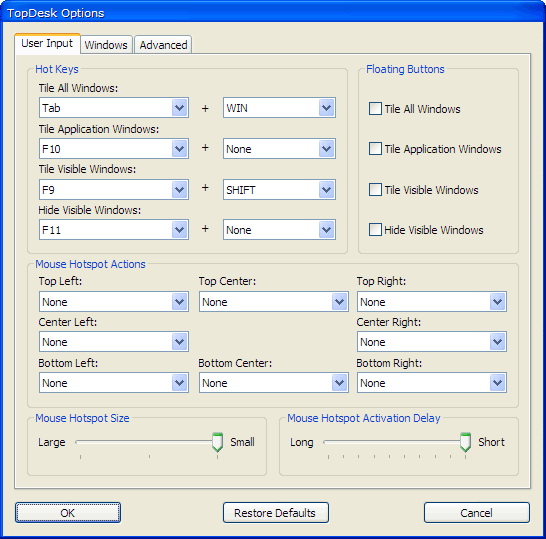
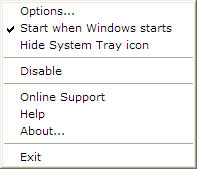
TopDesk 1.5.3 has been released. This release adds Win+Tab hot key support, improved compatibility with Java applications and Linux ports, the ability to hide the TopDesk system tray icon, the ability to enable and disable TopDesk from the system tray menu, and the addition of a Start Menu shortcut to the TopDesk Options dialog.
Visit the What’s New page for more information on what’s changed in this version, visit the TopDesk page to find out more about TopDesk, and visit the Online Store to buy TopDesk 1.5.3. CoverFlowJune 17, 2007
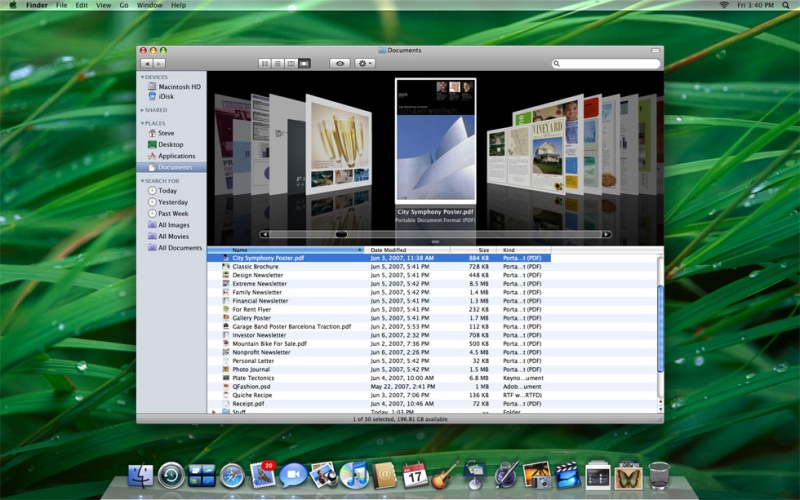
Apple purchased CoverFlow, a way to visually scroll through the music albums on your computer, from Jonathan del Strother a couple of years ago. They first added it to to iTunes, and now it’s found its way into OS X Leopard as a general purpose solution to scrolling through documents.
It’s a very intuitive approach to navigating through a set of images, and I think it’d be a great way to switch between windows. What do you think? Enabling Traditional Alt-Tab Behavior in TopDesk 1.5.2June 14, 2007
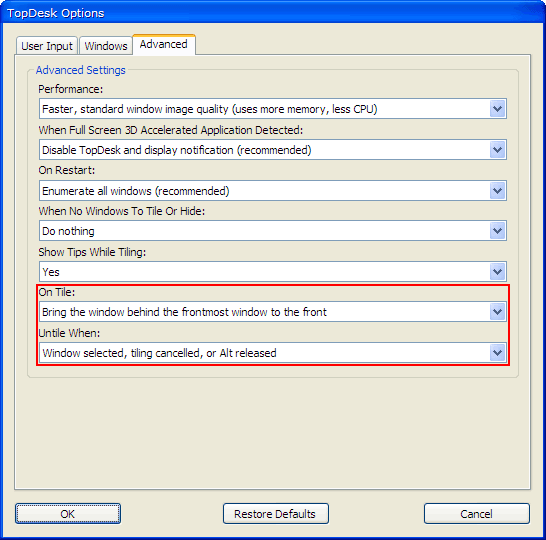
TopDesk 1.5.2 optionally supports traditional Alt-Tab behavior. What this means is that when you press Alt-Tab to tile windows TopDesk will bring the second-most recent window to the front, and, after you Tab to the window you want, releasing Alt will select the window. This behavior is off by default, but you can turn it on in the Advanced tab of the Options dialog.
To enable traditional Alt-Tab behavior, right-click on the TopDesk icon in the system tray and select the Options… menu item to display the Options dialog, then click on the Advanced tab. Next, go to the On Tile combo box and select Bring the window behind the frontmost window to the front, then change the Untile When combo box to Window selected, tiling canceled, or Alt released. Finally, press the OK button to save your selection. If you don’t see the traditional Alt-Tab behavior after making these changes please make sure you’ve configured Alt-Tab as a hot key in the User Input tab of the Options dialog. Using the Quick Launch Shortcuts in TopDesk 1.5.2June 13, 2007
One of the best new features of TopDesk 1.5.2 is the addition of Quick Launch shortcuts, three little icons that sit in your Quick Launch toolbar and give you the ability to display both the Flip and Spatial layouts and to hide visible windows.

The Quick Launch Shortcut Icons
Tile All Windows (Flip) - Clicking this icon will make TopDesk display all windows in the Flip layout.
Tile All Windows (Spatial) - Clicking this icon will make TopDesk display all windows in the Spatial layout.
Hide Visible Windows - Clicking this icon will hide all visible windows. If the windows are already hidden, clicking this icon will show them. Creating Your Own TopDesk Quick Launch Shortcut Icons You can also make your own Quick Launch Shortcut Icons by creating a shortcut to the TopDesk .exe file and then supplying special command line parameters in the shortcuts Target edit box:
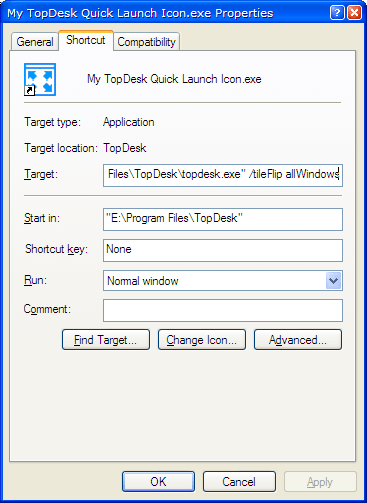
The command line parameters are: /tileFlip allWindows - Tile all windows using the Flip layout. You can also get quite creative using the command line parameters. For example, you can activate the Flip layout from a batch file by calling: C:\Program Files\TopDesk\topdesk.exe /tileFlip allWindows We’ll be adding more command line parameters in future versions of TopDesk, and we’d love to hear what features and actions you’d like to be able to access from the command line. TopDesk 1.5.2 ReleasedJune 12, 2007

This release adds Quick Launch Toolbar shortcuts, improved Game and 3D application compatibility, the ability to run TopDesk portably, and the ability to restore the default configuration options. To find out what’s changed, visit the What’s New page, and to find out more about TopDesk, visit the TopDesk page. TopDesk 1.5.1 ReleasedJune 1, 2007
This release adds the ability to select windows with the mouse in Flip mode and improves both performance and video, game, and screen saver compatibility. We’ve also added an option to choose between the old TopDesk 1.4.2 tiling/untiling behavior and traditional Alt-Tab tiling/untiling behavior, included a fix for both the Windows Vista blank Desktop wallpaper issue and a couple of minor hot key issues. Finally, TopDesk can now detect and elegantly handle hung application windows. To find out what’s changed, visit the What’s New page, and to find out more about TopDesk, visit the TopDesk page. |