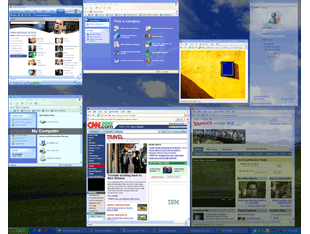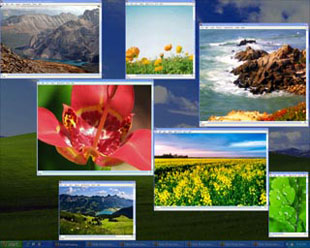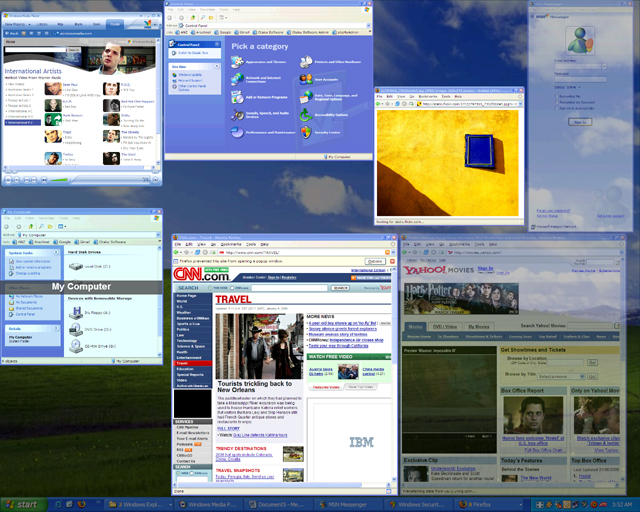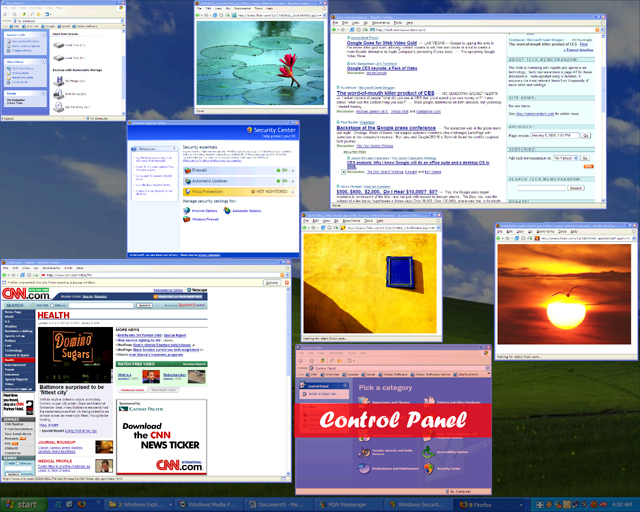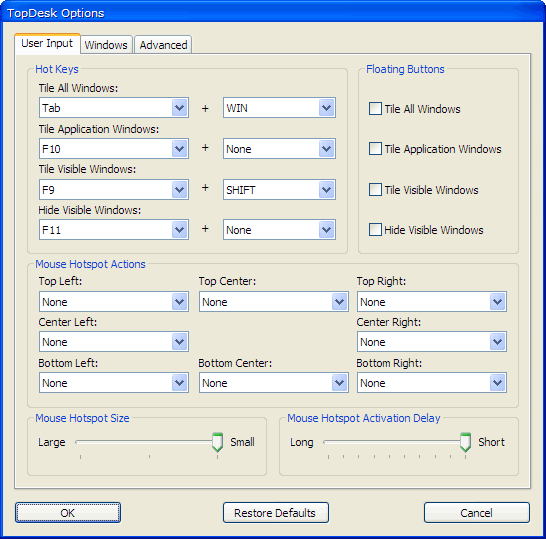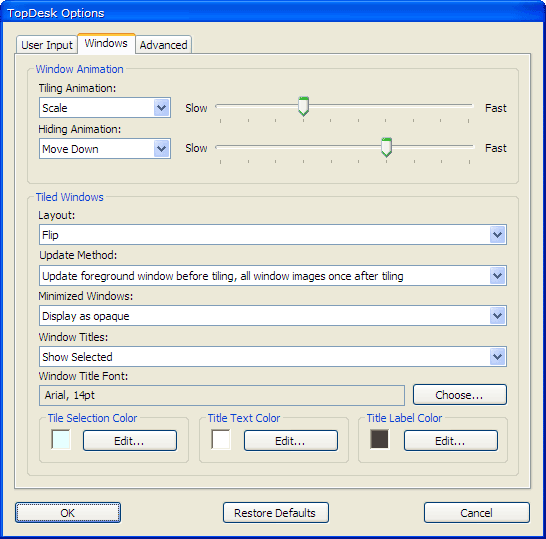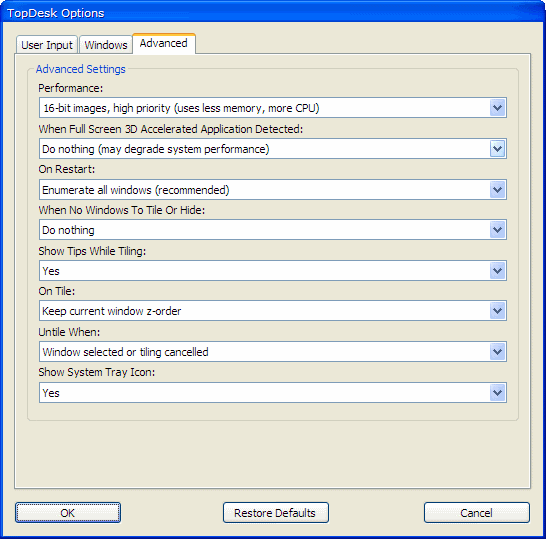





To configure TopDesk, Right-Click on the TopDesk icon in the taskbar notification area and select the Options... menu item. This will display the TopDesk Options dialog. The options dialog contains three tabs: the User Input tab, the Windows tab, and the Advanced tab.
The User Input Options specify how the various TopDesk actions will be triggered. TopDesk actions can be triggered using Hot Keys, Mouse Hotspots, and Floating Buttons.
The Tile All Windows, Tile Visible Windows, Tile Application Windows, and Hide Visible Windows actions can be activated using hot keys. The hot key combination for each action is set using its respective drop-down menu. The left-hand drop-down menus let you specify the key that will activate the function, while the right-hand drop-down menus let you specify a "modifier" key combination (CTRL, ALT, SHIFT, WIN, CTRL+ALT, CTRL+SHIFT, or CTRL+ALT+SHIFT) that must be pressed at the same time.
Please note that using the same hot key combinations as other applications will produce unpredictable results and is not recommended.
The Tile All Windows, Tile Visible Windows, Tile Application Windows, and Hide Visible Windows actions can be activated by moving the mouse to hotspots located at the corners, sides, top, and bottom of the screen. The actions for each mouse hotspot are configured using the Top Left, Top Center, Top Right, Center Left, Center Right, Bottom Left, Bottom Center, and Bottom Right drop-down menus.
The size of the mouse hotspots is configured using the Mouse Hotspot Size slider. Larger mouse hotspots are easier to activate but also easier to accidently trigger, while smaller mouse hotspots are harder to activate but harder to accidently trigger.
The length of time the mouse must hover over a hotspot in order to activate it is configured using the Mouse Hotspot Activation Delay slider. Longer delays reduce the chance of accidently activating the hotspot but are slower to use, while shorter delays increase the change of accidently activation but are quicker to use.
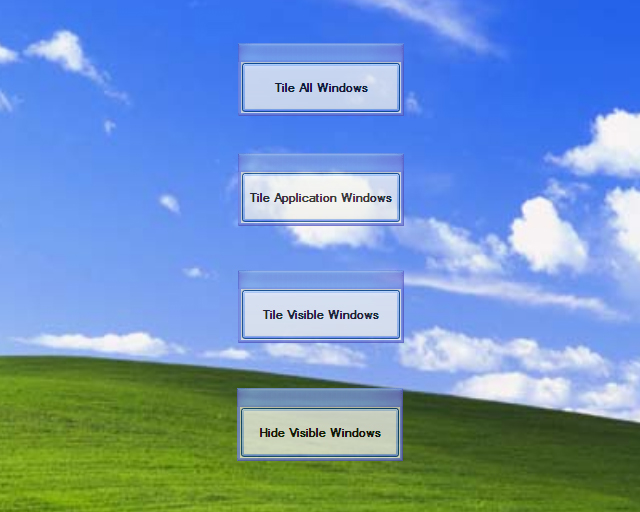
Floating buttons make it easier for TabletPC users to activate the Tile All Windows, Tile Visible Windows, Tile Application Windows, and Hide Visible Windows actions. Floating buttons are enabled/disabled using the Tile All Windows, Tile Visible Windows, Tile Application Windows, and Hide Visible Windows floating button checkboxes.
The Windows Options determine how TopDesk tiles and hide windows, and how tiled windows are displayed and updated.
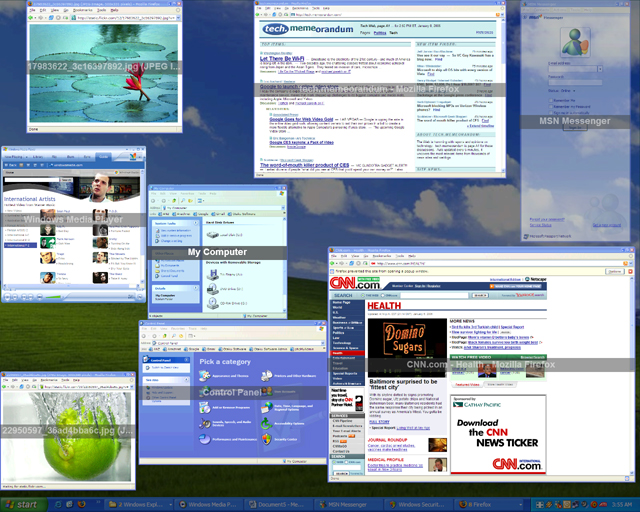
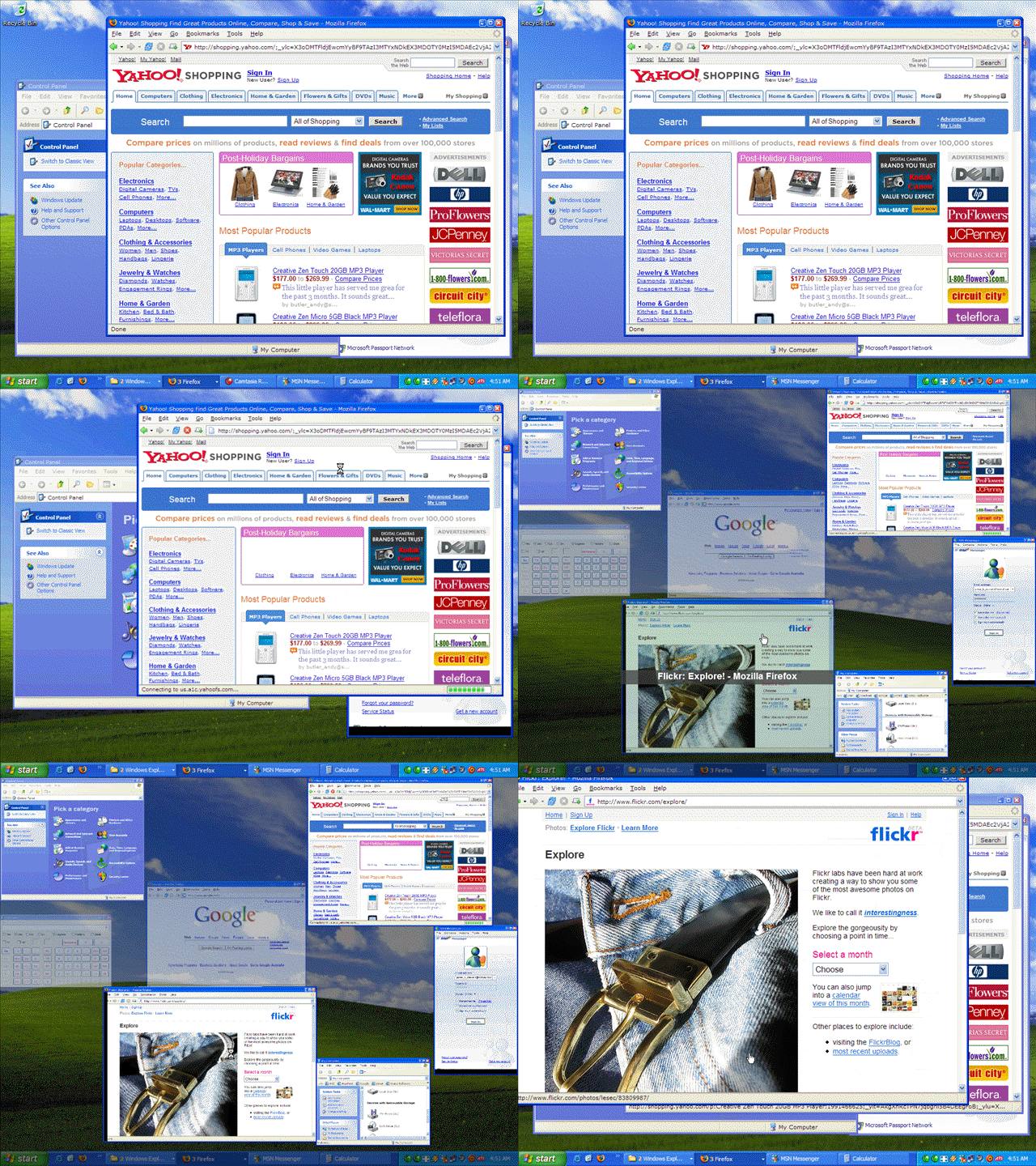
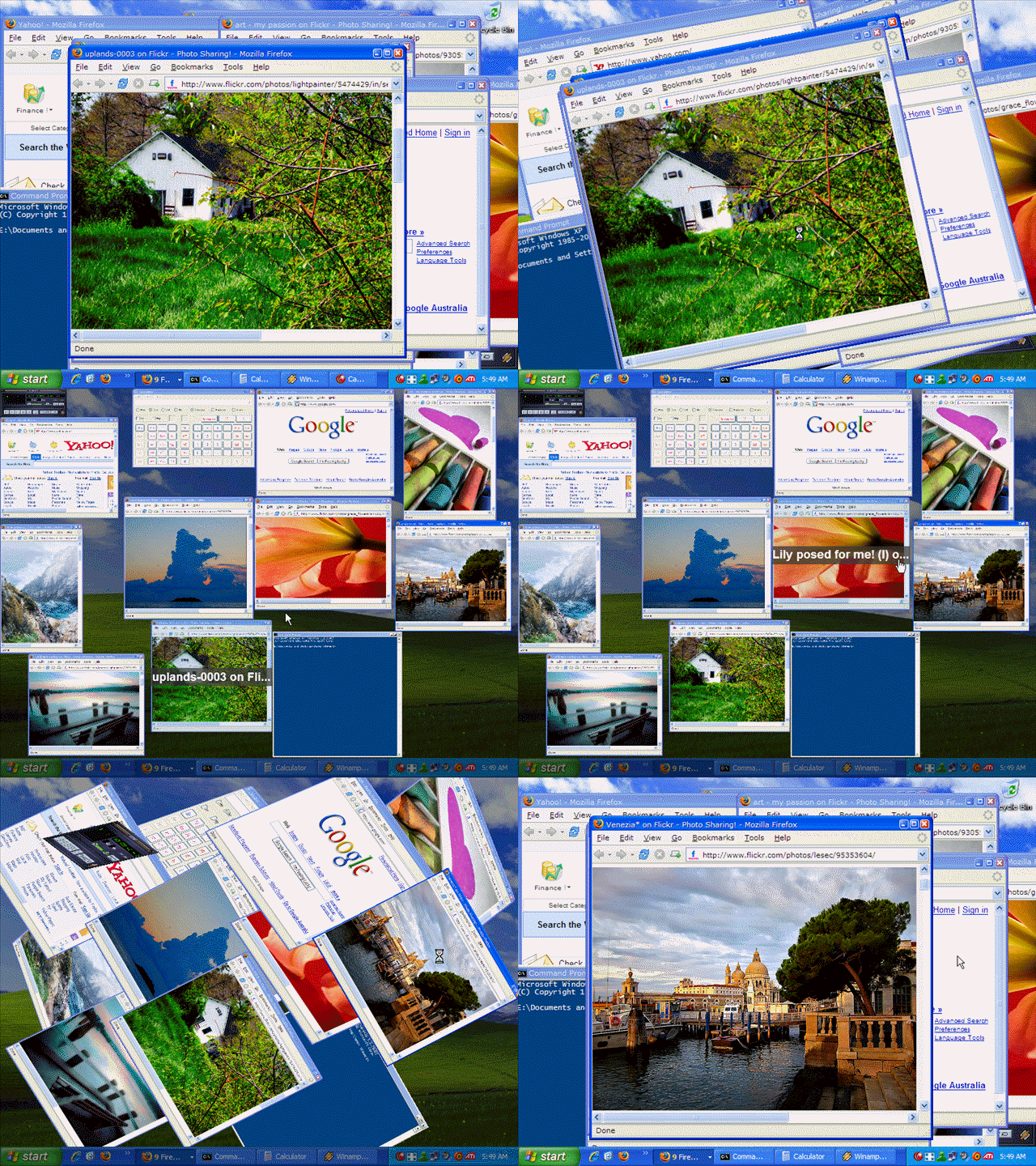
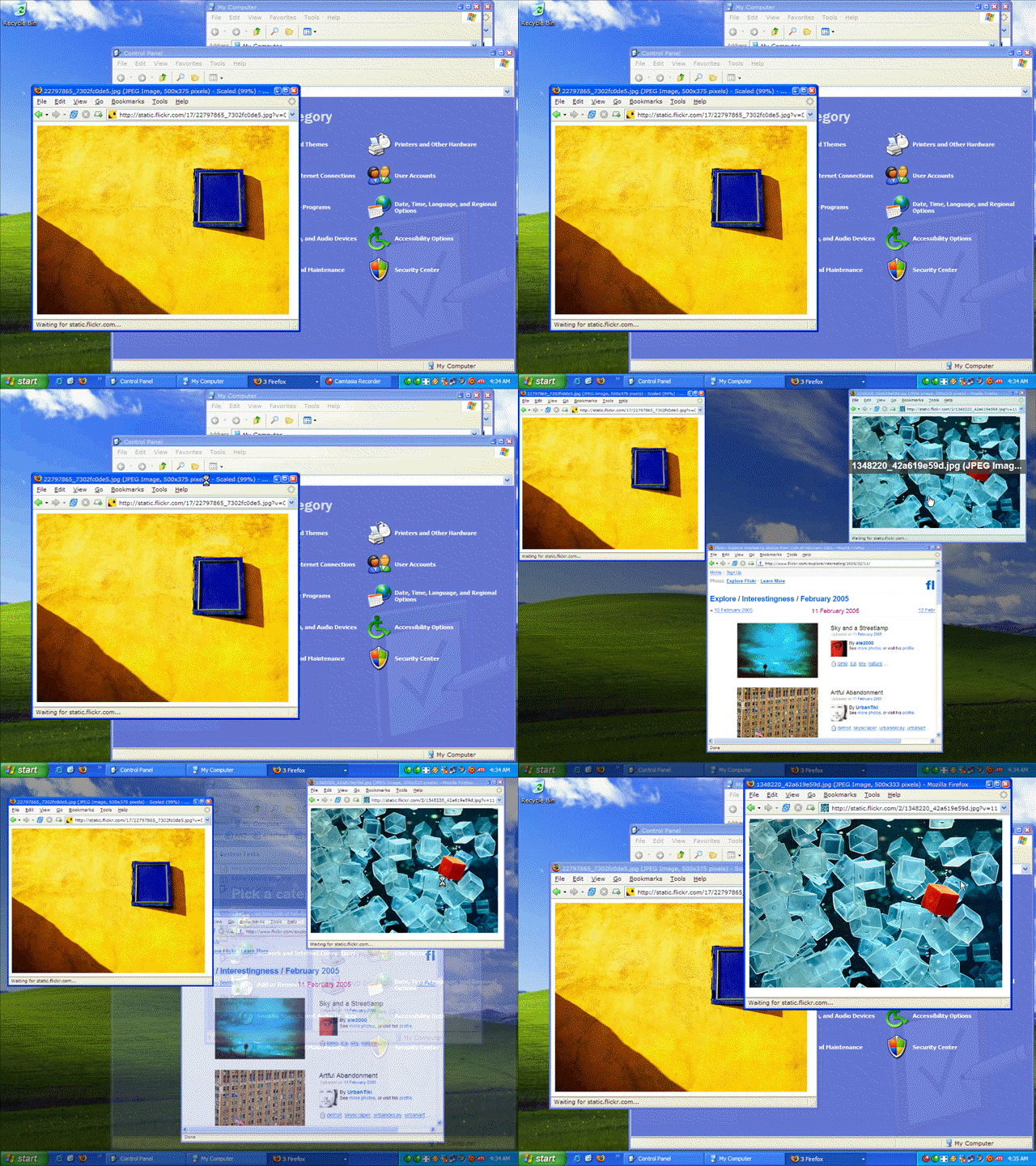
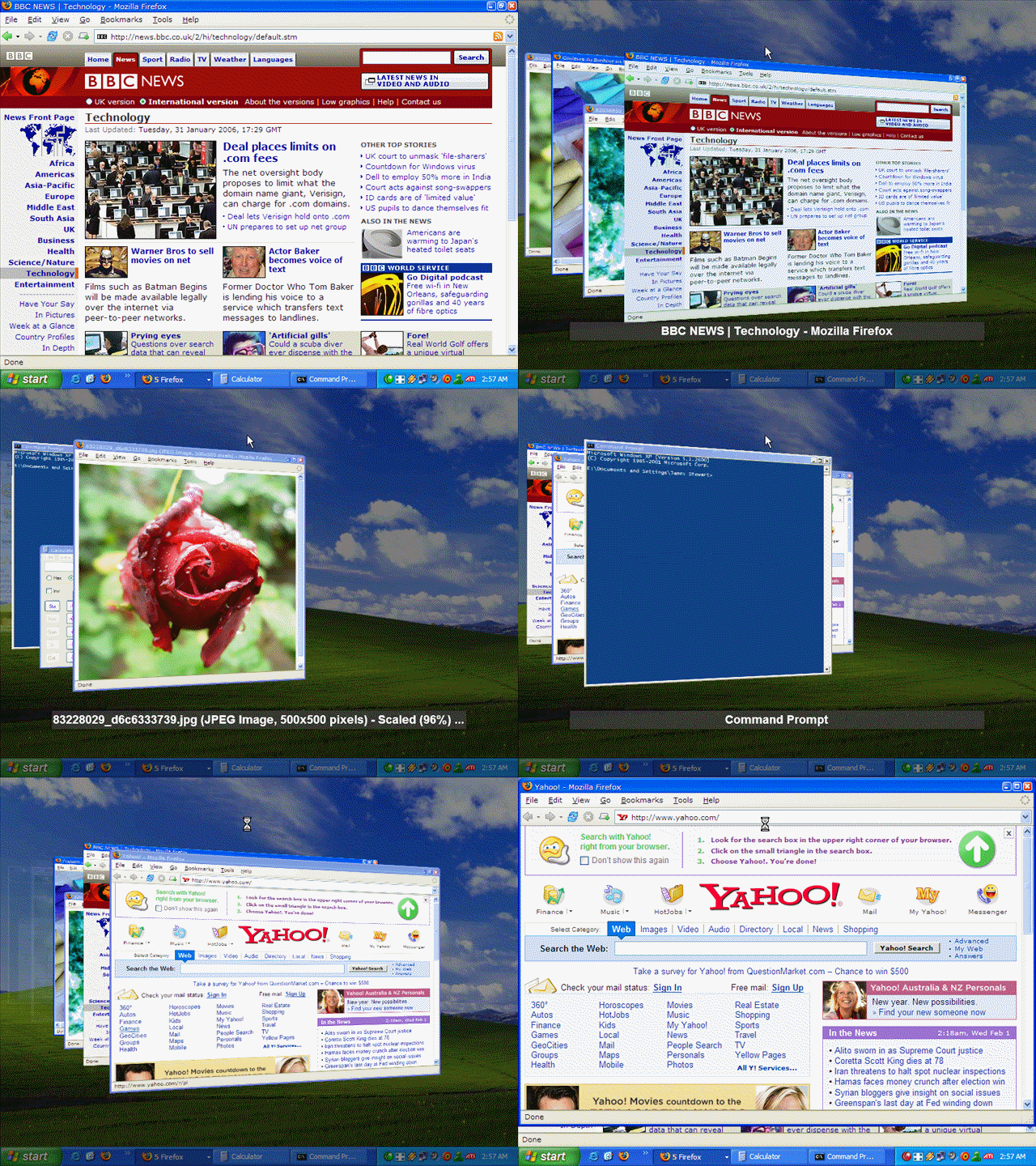
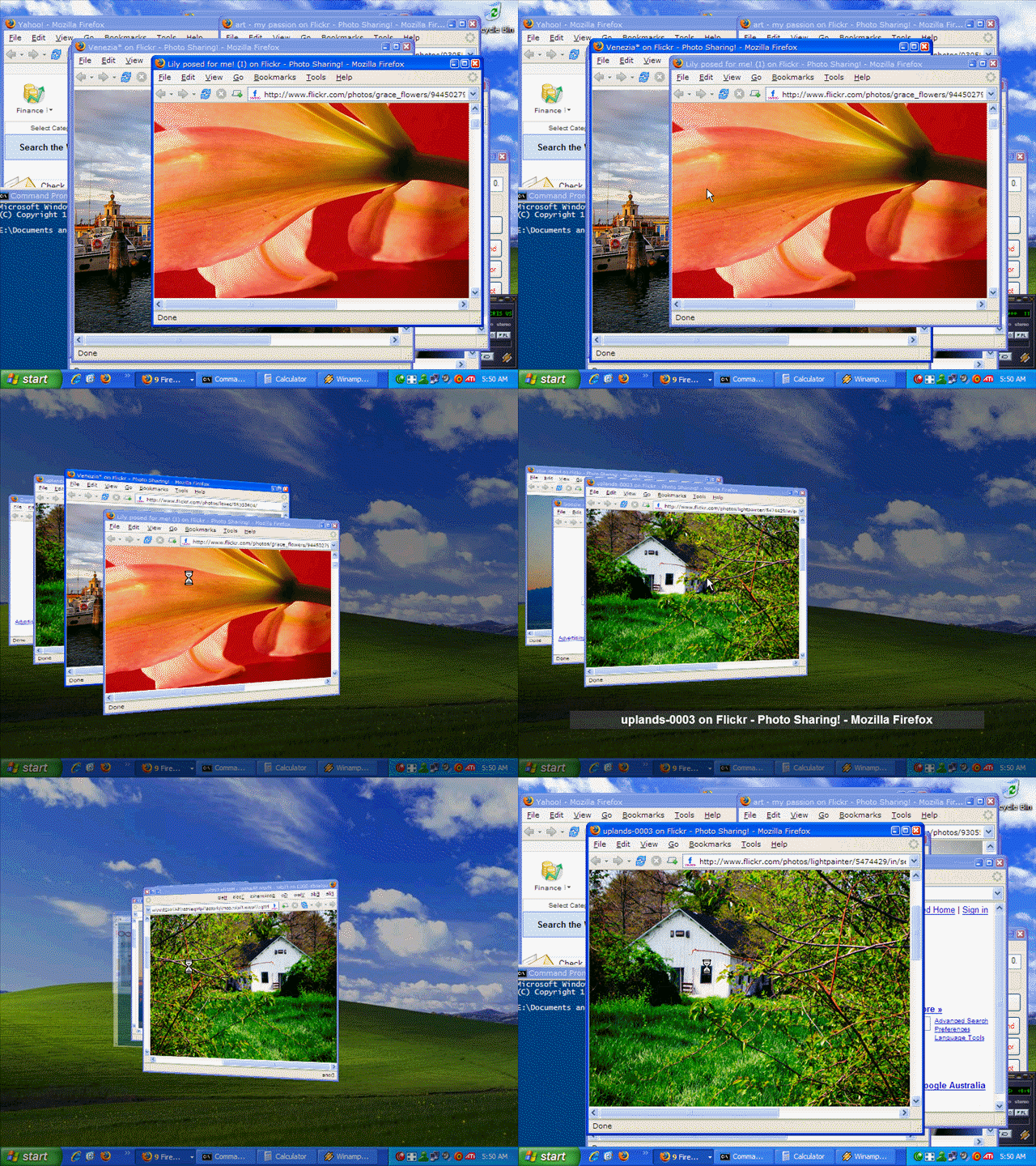
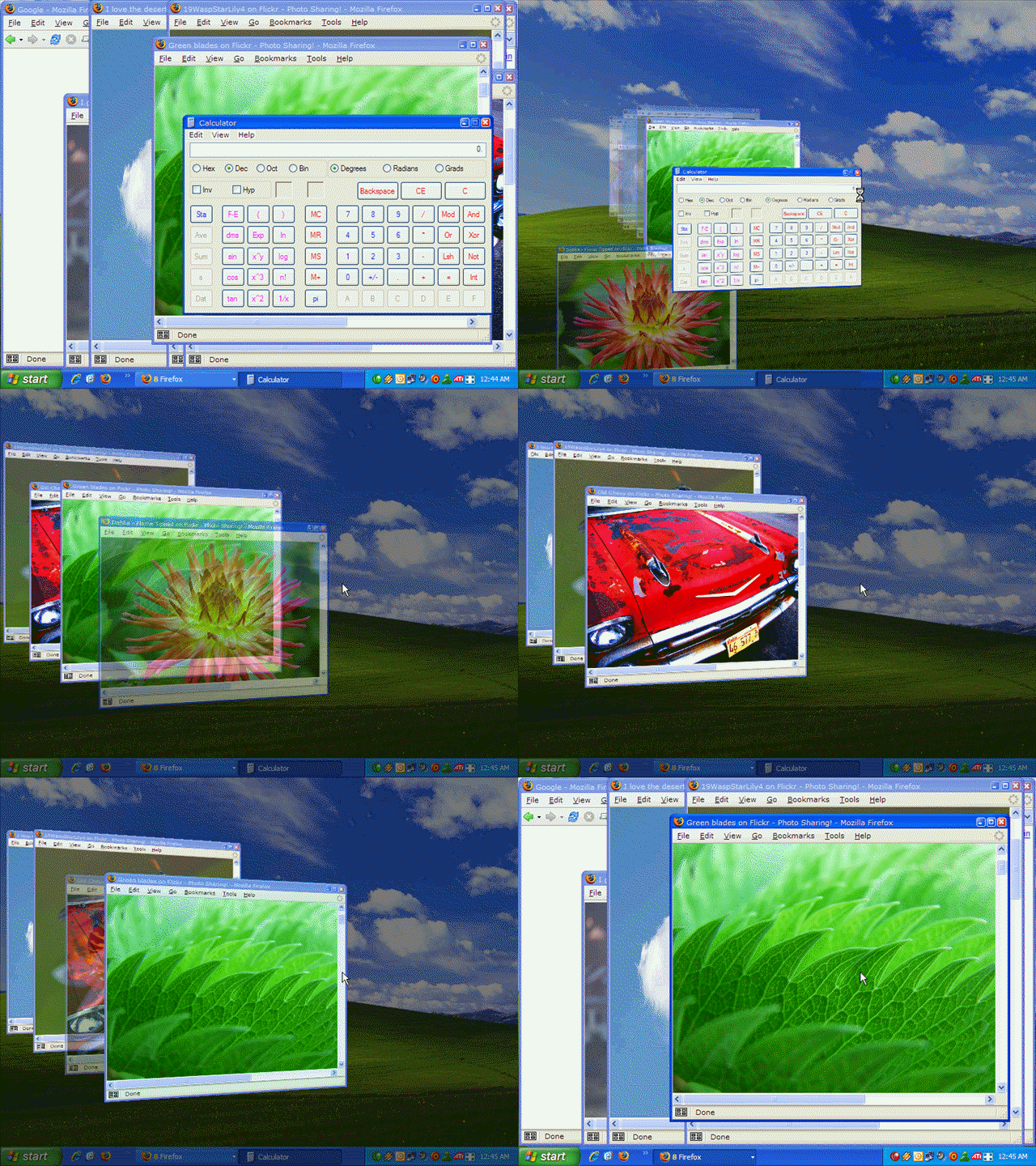
Tiling animation settings are managed using the Tiling Animation drop-down menu and slider. Move the Tiling Animation slider to the left to slow down window tiling animation, and move it to the right to speed up animation. The following tiling animations are available:
Windows are tiled immediately.
Windows are scaled until they reach their tiled position and size.
Windows are scaled and rotated about the X axis until they reach their tiled position and size.
Windows are scaled and rotated about the Y axis until they reach their tiled position and size.
Windows are scaled and rotated about the Z axis until they reach their tiled position and size.
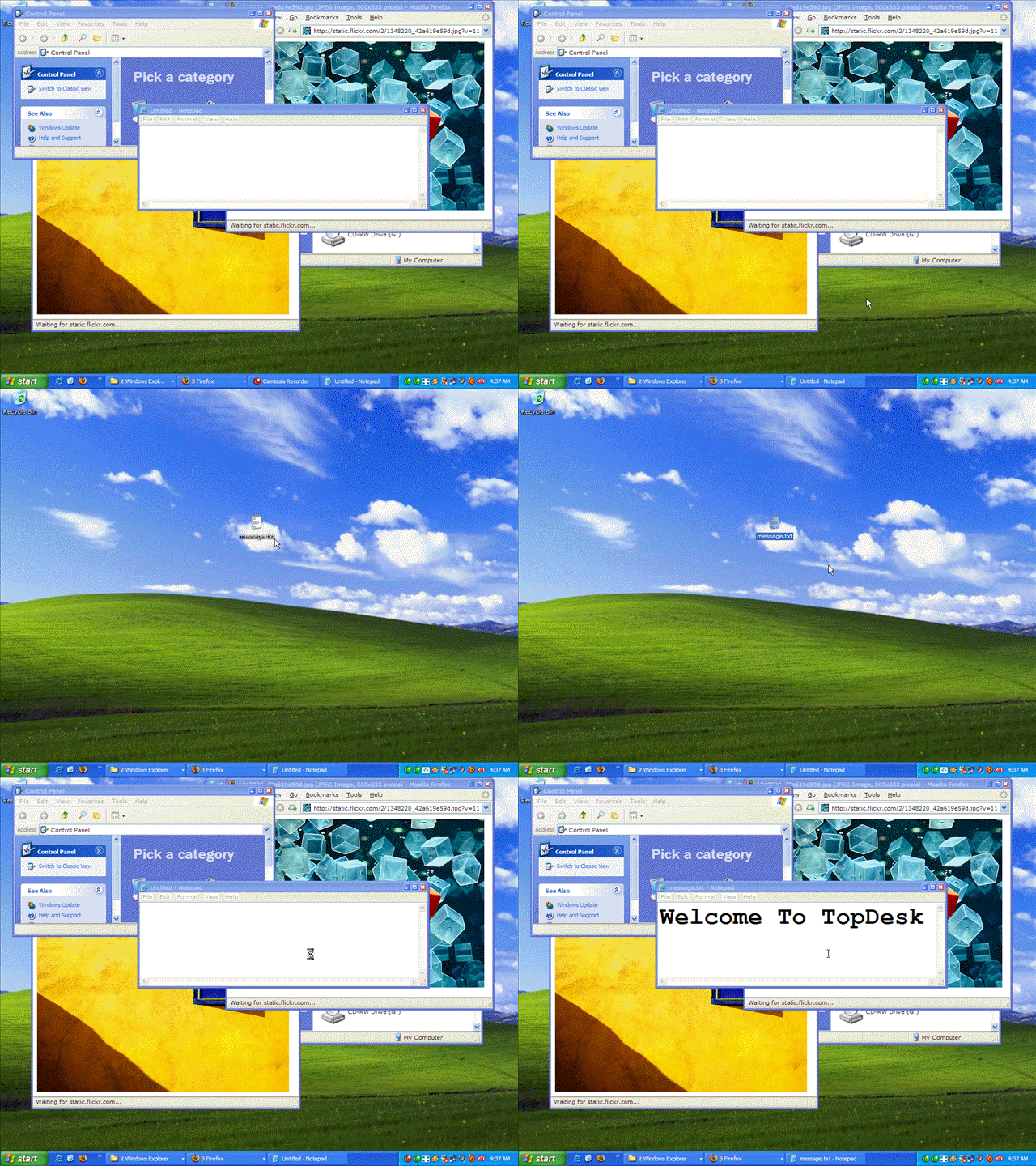
Hiding animation settings are configured using the Hiding Animation drop-down menu and slider. Move the Hiding Animation slider to the left to slow down window hiding animation, and move it to the right to speed up animation. The following hiding animations are available:
Windows are hidden immediately.
Windows are moved down the bottom of the screen until they reach their hidden position.
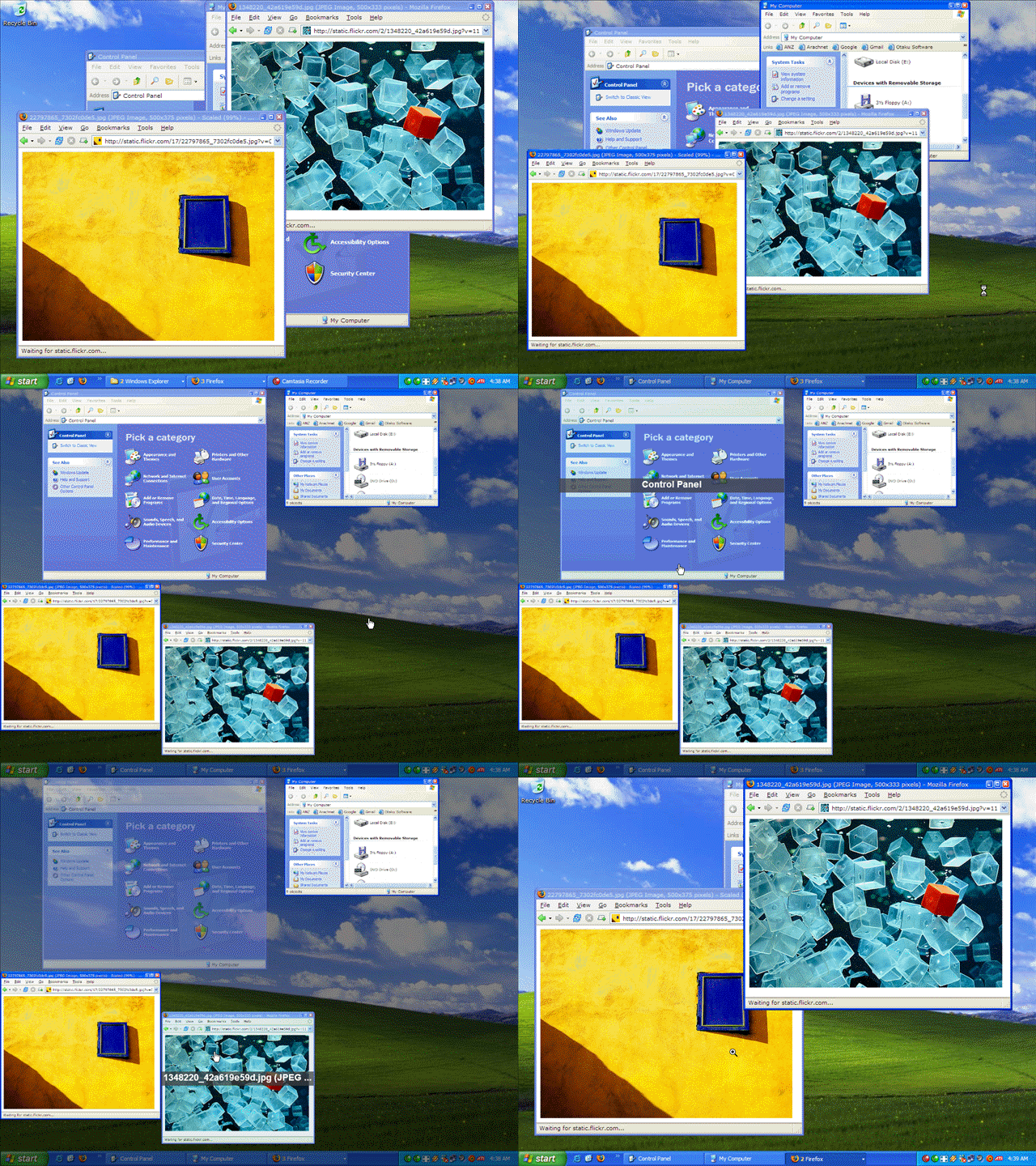
The type of window tiling layout is selected using the Layout drop-down menu. The following layout methods are available:
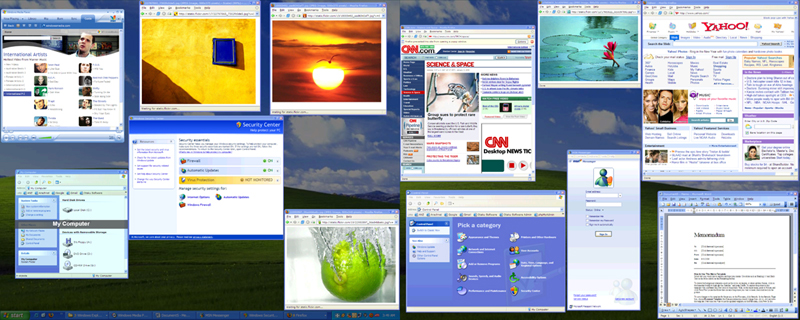
Windows are tiled in a grid according to their position in the window z-order. TopDesk will place the topmost window tile at the top-left of the screen.
Windows are tiled according to their on-screen position. TopDesk will attempt to keep windows as close to their original position and size as possible.
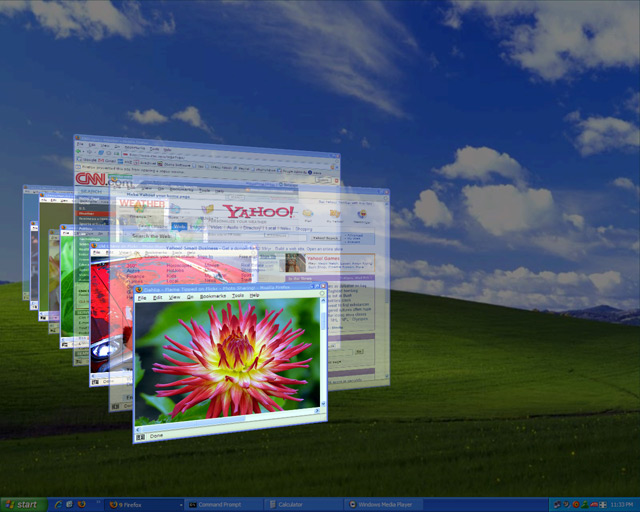
Windows are show in a 3D list, with the topmost window at the front.
TopDesk stores the image of each window in order to display a thumbnail of it while tiling. However, on all but very high-end systems it takes a lengthy period of time to capture and store window images, which means that most systems are not fast enough to keep all window images up-to-date all the time. To get around this issue TopDesk offers a number of different ways to update window images. The following update methods are available from the Tiled Windows Update Method drop-down menu:
The image of a windows is only updated when that window is resized. Since this method makes no effort to ensure window images are up-to-date before tiling, it should only be used on very low-end systems.
Window images are not updated before tiling, but all window images are updated once the windows have been tiled. This method will tile windows using out of date window images, but will ensure all window images are up to date a second or so after tiling.
Window images are not updated before tiling, but all window images are updated continuously once the windows have been tiled. This method will tile windows using out of date window images, but will ensure all window images are up to date a second or so after tiling. This method provides a real-time view of windows while they are tiled, making it useful for watching any window that changes over time.
All window images are updated before tiling. This method should only be selected on systems with a high-end CPU and video card. On other systems, selecting this update method will result a significant delay before tiling takes place.
All window images are updated before tiling and all window images are updated continuously once the windows have been tiled. This method will provide more up-to-date window images than any other method. This method provides a real-time view of windows while they are tiled, making it useful for watching any window that changes over time. This method should only be selected on systems with a high-end CPU and video card. On other systems, selecting this update method will result a significant delay before tiling takes place.
The foreground window image is updated before tiling. No other window images are updated before or after tiling. This method is much faster than the Update window images once before tiling methods, while still providing a close approximation of those methods.
This method offers the best tradeoff between speed and keeping window images up-to-date.
The foreground window image is updated before tiling and all window images are updated once the windows have been tiled. This method is much faster than the Update window images once before tiling methods, while still providing a close approximation of those methods. This method will ensure that all window images are up to date a second or so after tiling.
The foreground window image is updated before tiling and all window images are updated once the windows have been tiled. This method is much faster than the Update window images once before tiling methods, while still providing a close approximation of those methods. This method provides a real-time view of windows while they are tiled, making it useful for watching any window that changes over time.
The display of minimized windows while tiling is selected using the Minimized Windows drop-down menu. The following minimized window display types are available:
Minimized windows are transparent while tiling.
Minimized windows are opaque while tiling.
Window title settings are configured using the Window Titles drop-down menu, the Choose button, and the title text, label, and tile selection colors. To disable window titles select None from the Window Titles combobox. To show only the title of the currently selected window choose Show Selected, and to show the titles of all windows choose Show All. To change the window title font, click the Choose... button to open a font selection dialog. To change the title text, label, and tile selection colors, click the Edit... button next to each color.
The Advanced Options determine how TopDesk tiles and hide windows, and how tiled windows are displayed and updated.
The performance setting affects how much memory TopDesk will use, how fast TopDesk will run, and the quality of the window images TopDesk displays.
How much memory TopDesk uses is determined by image quality: using 16-bit images will result in lower image quality but use less memory, while using 32-bit images will result in higher image quality but use more memory.
The CPU priority TopDesk uses when it snapshots window images affects both image quality and the speed at which TopDesk runs. Using a low CPU priority will result in standard image quality and some graphical glitches, but will not cause other applications to run slower. Using a high CPU priority will result in better image quality and less graphical glitches, but may cause other applications to run slower.
The following performance options are available:
Windows XP was not designed to run multiple full screen 3D accelerated applications at the same time. As TopDesk is a full screen 3D accelerated application, compatibility issues may be experienced with other full screen 3D accelerated applications, such as games. To work around any incompatibilities, TopDesk can disable itself when another full screen 3D accelerated application is open. The following options are available:
TopDesk will automatically disable itself when another full screen 3D accelerated application is open, and automatically enable itself when no other full screen 3D accelerated application is open. When necessary, TopDesk will notify the user that it is disabled. This is the recommended option.
TopDesk will automatically disable itself when another full screen 3D accelerated application is open, and automatically enable itself when no other full screen 3D accelerated application is open.
No action will be taken when another full screen 3D accelerated application is open.
In order to display windows during tiling, TopDesk must enumerate open windows when it starts or re-starts. The following restart options are available:
All windows, including minimized windows, will be enumerated.
Only visible windows will be enumerated. Minimized windows will not be displayed during tiling until they have been manually restored by the user.
TopDesk can notify the you if you attempt to tile or hide when no windows are open. The following options are available:
The system will sound a beep.
Nothing will happen.
While tiling, TopDesk can display tips on how to use its features. The following options are available:
TopDesk will show tips.
TopDesk will not show tips.
TopDesk can rearrange the window z-order when tiling begins. The following options are available:
TopDesk will retain the current window z-order when tiling.
TopDesk will bring the window behind the frontmost window to the front. If there is no frontmost window, the topmost window in the z-order will be brought to the front. This option mimics traditional Alt-Tab behavior.
TopDesk can untile windows when a number of actions occur. The following options are available:
TopDesk will untile when a window is selected or tiling is cancelled.
TopDesk will untile when a window is selected, tiling is cancelled, or Alt is part of a TopDesk hot key combination. This option mimics traditional Alt-Tab behavior.
You can choose whether TopDesk will display its icon in the system tray. The following options are available:
The TopDesk icon will be shown in the system tray.
The TopDesk icon will not be shown in the system tray.