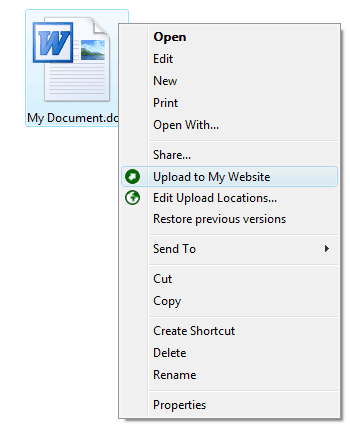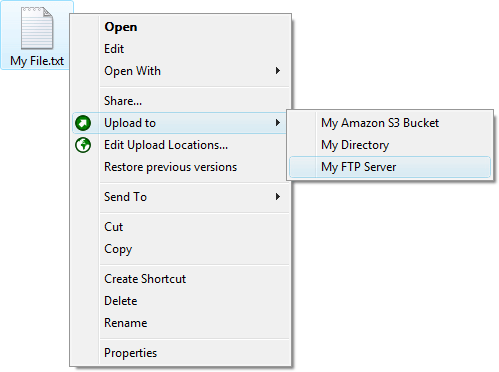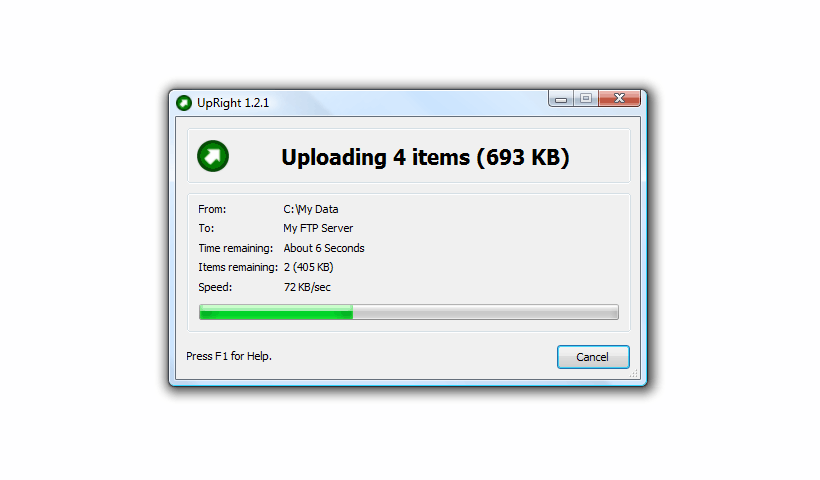





Before you can upload files and directories using UpRight, you must configure your upload location/s. An upload location is the destination to which you wish to upload files and directories; it can be an FTP server, an Amazon S3 bucket, or a directory on your local machine or network. You can configure as many upload locations as you wish.
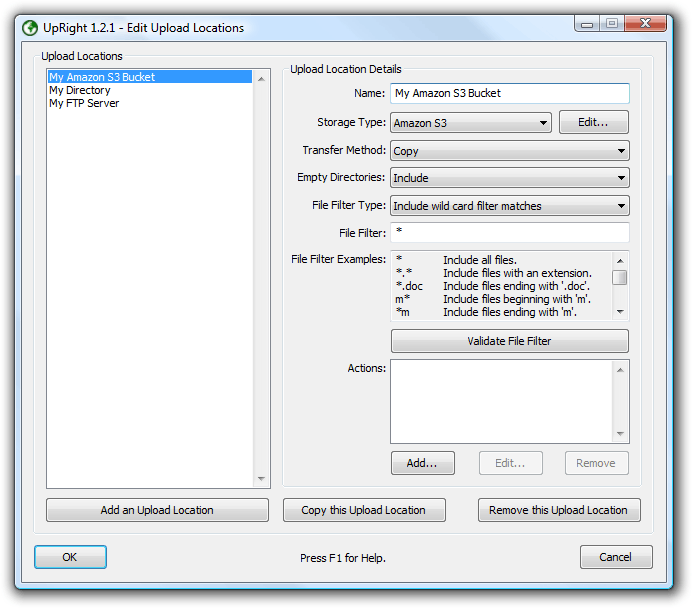
To configure your upload locations, launch the Edit Upload Locations utility, either by clicking on the icon - found on the Desktop, in the quick launch bar or in the Start Menu - or by right-clicking in an Explorer window and selecting the Edit Upload Locations menu item.
Upload locations can be added by clicking the Add an Upload Location button, or removed by clicking the Remove this Upload Location button. To copy the currently selected upload location to a new upload location, click the Copy this Upload Location button.
To edit an upload location, click on it in the Upload Locations list. The following properties must be configured for each upload location:
The unique name of this location.
The type of storage the files and directories will be transferred to. There are three valid storage types:
A directory on a FTP server.
An Amazon S3 bucket.
A local or network directory.
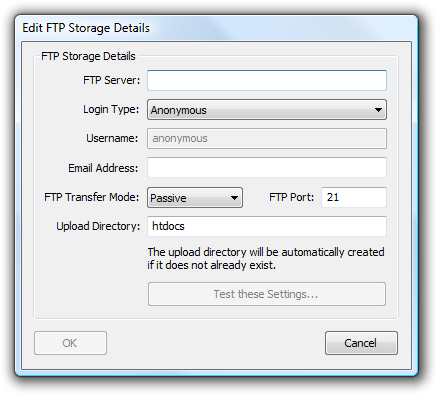
To configure your preferred storage type, select it from the Storage Type drop-down box and click the Edit button. If you have selected a FTP storage location, the Edit FTP Storage Details dialog will be displayed:
The following properties must be configured for a FTP storage location:
The FTP server to which files and directories will be uploaded.
There are two types of login:
Anonymous - used when your FTP account does not require a username and password to log in.
Username/Password - used when your FTP account requires a username and password to log in.
To be used for login, if the Username/Password login type is selected.
There are two ways to transfer files and directories to a FTP server: Active and Passive. If you are unsure, select Passive, as it is the more commonly used transfer mode.
The FTP port to which you wish to connect (usually port 21).
The name of the directory on the FTP server to which you will upload files and directories. This can be an existing directory or a new one - if the directory does not already exist, UpRight will create it for you.
Once you have configured the FTP storage details, you can press the Test these Settings button to verify that the details are correct.
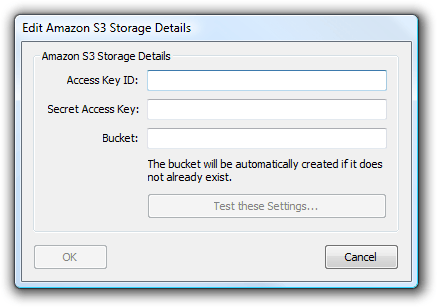
If you have selected an Amazon S3 storage location, the Edit Amazon S3 Storage Details dialog will be displayed:
To use Amazon S3 you need an Amazon AWS account. You can sign up for an account at http://aws.amazon.com, or learn more about Amazon S3 at http://aws.amazon.com/s3. The following properties must be configured for an Amazon S3 storage location:
The Access Key ID of your Amazon AWS account.
The Secret Access Key of your Amazon AWS account.
The name of the Amazon S3 bucket to which you wish to upload files and directories. If the bucket name you enter does not already exist, it will be created for you.
Once you have configured the Amazon S3 storage details, you can press the Test these Settings button to verify that the details are correct.
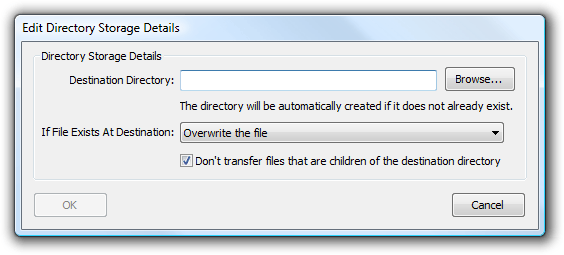
If you have selected an Directory storage location, the Edit Directory Storage Details dialog will be displayed:
The following properties must be configured for a Directory storage location:
The local or network directory to which files and directories will be uploaded. If the directory name that you enter does not already exist, it will be created. You can use the Browse button to browse for a destination directory.
You may specify the action to take if a file that you begin uploading already exists at the destination. There are three options: Overwrite the file; Ask if the file is to be overwritten; and Do not overwrite the file.
When this option is enabled, any files you attempt to upload that are children of the destination directory will not be uploaded. For example, if the destination directory is C:\Movies and you attempt to upload the file C:\Movies\MyMovie\MyMovie.avi, the file will not be uploaded if this option is enabled. If this option is disabled, the file will be uploaded to the location C:\Movies\MyMovie.avi.
The method UpRight will use to transfer files and directories. There are two transfer methods:
Files and directories are copied to the upload location.
Files and directories are moved to the upload location, and the original files and directories are deleted.
You can choose how UpRight handles empty directories (i.e. directories with no files that match the specified file filter) during the transfer. There are two choices:
UpRight will copy empty directories to the upload location.
UpRight will not copy empty directories to the upload location.
This option allows you to choose which files to include or exclude from the transfer. UpRight supports both wild card and regular expression file filters. There are three types of file filter:
Only files that match a wild card filter will be included in the transfer.
All files that match a wild card filter will be excluded from the transfer.
Only files that match a regular expression filter will be included in the transfer.
This is the filter that UpRight matches files against when choosing whether or not to include them in the transfer. UpRight supports both wildcard and regular expression filters.
The format for wild card filters is:
Asterisk (*)
Use the asterisk as a substitute for zero or more characters. For example, if you are looking for a file that you know starts with gloss but you can not remember the rest of the file name, type the following:
gloss*
This locates all files of any file type that begin with gloss, including Glossary.txt, Glossary.doc, and Glossy.doc. To narrow the search to a specific type of file, type:
gloss*.doc
This locates all files that begin with gloss and have the file name extension .doc, such as Glossary.doc and Glossy.doc.
Question mark (?)
Use the question mark as a substitute for a single character in a file name. For example, if you type gloss?.doc, you will locate the files Glossy.doc and Gloss1.doc but not Glossary.doc.
You can specify multiple wildcard filters by separating each filter with the ; character.
* matches all files
*.* matches all files with an extension
*.doc matches files ending with .doc
m* matches files beginning with m
*m matches files ending with m
*.txt;*.doc matches files ending with .txt or .doc
A regular expression is an expression that describes a set of strings. Regular expressions can be constructed as follows:
Alternation
A vertical bar separates alternatives. For example, gray|grey, which could be shortened to the equivalent gr(a|e)y, can match gray or grey.
Grouping
Parentheses are used to define the scope and precedence of the operators. For example, gray|grey and gr(a|e)y are different patterns, but they both describe the set containing gray and grey.
Quantification
A quantifier after a character or group specifies how often that preceding expression is allowed to occur. The most common quantifiers are ?, *, and +:
? The question mark indicates there is zero or one of the previous expression. For example, colou?r matches both color and colour.
* The asterisk indicates there are zero, one or any number of the previous expression. For example, go*gol matches ggol, gogol, googol, gooogol, etc.
+ The plus sign indicates that there is at least one of the previous expression. For example, go+gol matches gogol, googol, gooogol, etc., but does not match ggol.
^.*$ matches all files
^.*\..*$ matches all files with an extension
^.*\.doc$ matches files ending with .doc
^m.*$ matches files beginning with m
^.*m$ matches files ending with m
^(.*\.txt)|(.*\.doc)$ matches files ending with .txt or .doc
More information on regular expressions is available at:
You can check that you have specified a valid file filter by clicking the Validate File Filter button.
UpRight can perform one of three actions after an upload takes place, including displaying a message, emailing a message, or copying a message to the clipboard.
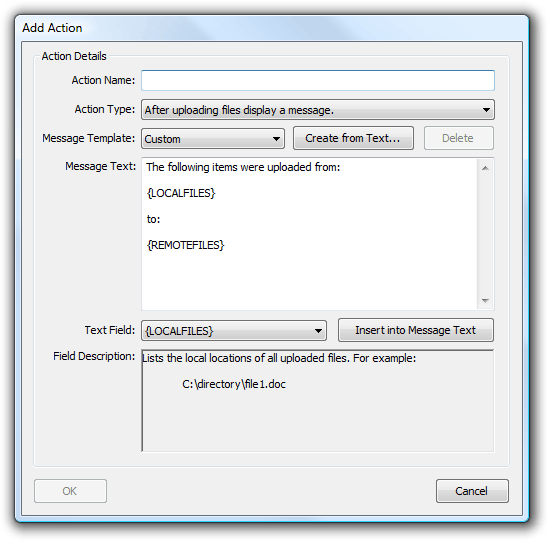
To add an action, click the Add... button. To remove the currently selected action in the list, click the Remove button. To edit the currently selected action in the list, click the Edit... button. Clicking the Add... or Edit... button will display the Add/Edit Action dialog.
The following properties must be configured for each action:
The name of the action to be performed, which must be unique for the location.
What to do after files have been uploaded. There are three options:
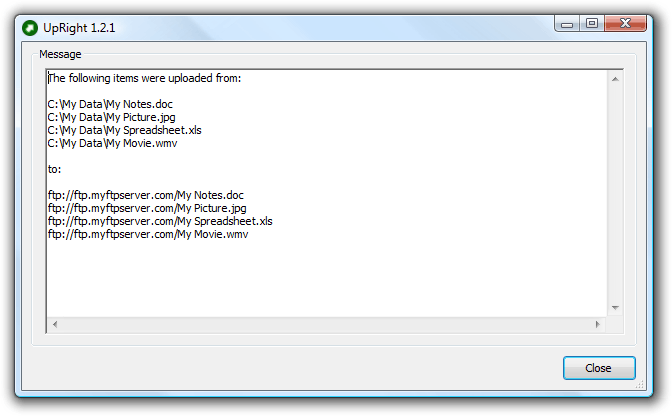
After uploading files display a message;
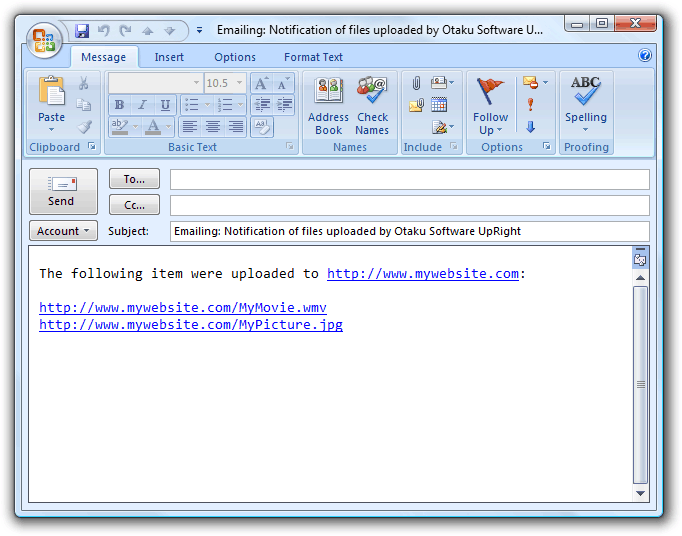
After uploading files email a message; and
After uploading files copy a message to the clipboard.
Lets you select from a list of pre-defined message templates. To create a message template from the current message text, press the Create from Text... button. To delete the currently selected message template, press the Delete button.
Enter the text that will be displayed, emailed or copied to the clipboard. The text can contain a number of text fields that will be replaced with upload properties including details of the files that were uploaded.
{LOCALFILES}
Lists the local locations of all uploaded files, for example:
C:\directory\file1.ext
C:\directory\file2.ext
{REMOTEFILES}
Lists the remote locations of all uploaded files, for example,
Uploading to an FTP server:
ftp://username:password@ftp.mysite.com/directory/file1.ext
ftp://username:password@ftp.mysite.com/directory/file2.ext
Uploading to Amazon S3:
http://s3.amazonaws.com/bucket/file1.ext
http://s3.amazonaws.com/bucket/file2.ext
Uploading to a directory:
C:\directory\file1.ext
C:\directory\file2.ext
{RELATIVEFILES}
Lists the relative paths of all uploaded files, for example:
directory\file1.ext
directory\file2.ext
{RELATIVEFILESPREPEND=StringToPrepend}
Lists the relative paths of all uploaded files, with the supplied string prepended to each; for example, uploading
C:\directory\file1.ext
C:\directory\file2.ext
to an FTP server when using http://www.mywebsite.com/ as the string to prepend would generate:
http://www.mywebsite.com/directory/file1.ext
http://www.mywebsite.com/directory/file2.ext
{FTPSERVER}
Lists the FTP server to which UpRight uploaded files or directories (only when uploading to an FTP server), for example:
ftp.mysite.com
{FTPUPLOADDIRECTORY}
Lists the FTP upload directory (only when uploading to an FTP server).
{FTPUSERNAME}
Lists the username used to log in to the FTP server (only when uploading to an FTP server).
{FTPPASSWORD}
Lists the password used to log in to the FTP server (only when uploading to an FTP server).
{AMAZONS3URL}
Lists the URL the Amazon S3 service is located at (only when uploading to Amazon S3), for example:
http://s3.amazonaws.com
{AMAZONS3BUCKET}
Lists the Amazon S3 bucket (only when uploading to Amazon S3).
{DIRECTORY}
Lists the destination directory (only when uploading to a directory).
Use the Insert into Message Text button to insert a text field into the message text.