


One of the best new features of TopDesk 1.5.2 is the addition of Quick Launch shortcuts, three little icons that sit in your Quick Launch toolbar and give you the ability to display both the Flip and Spatial layouts and to hide visible windows.

The Quick Launch Shortcut Icons

Tile All Windows (Flip) – Clicking this icon will make TopDesk display all windows in the Flip layout.

Tile All Windows (Spatial) – Clicking this icon will make TopDesk display all windows in the Spatial layout.

Hide Visible Windows – Clicking this icon will hide all visible windows. If the windows are already hidden, clicking this icon will show them.
Creating Your Own TopDesk Quick Launch Shortcut Icons
You can also make your own Quick Launch Shortcut Icons by creating a shortcut to the TopDesk .exe file and then supplying special command line parameters in the shortcuts Target edit box:
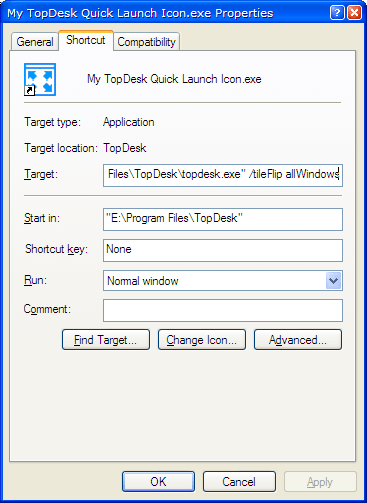
The command line parameters are:
/tileFlip allWindows – Tile all windows using the Flip layout.
/tileFlip applicationWindows – Tile application windows using the Flip layout.
/tileFlip visibleWindows – Tile visible windows using the Flip layout.
/tileSpatial allWindows – Tile all windows using the Spatial layout.
/tileSpatial applicationWindows – Tile application windows using the Spatial layout.
/tileSpatial visibleWindows – Tile visible windows using the Spatial layout.
/tileGrid allWindows – Tile all windows using the Grid layout.
/tileGrid applicationWindows – Tile application windows using the Grid layout.
/tileGrid visibleWindows – Tile visible windows using the Grid layout.
/showHide – Hide visible windows, or show them if they are already hidden.
You can also get quite creative using the command line parameters. For example, you can activate the Flip layout from a batch file by calling:
C:\Program Files\TopDesk\topdesk.exe /tileFlip allWindows
We’ll be adding more command line parameters in future versions of TopDesk, and we’d love to hear what features and actions you’d like to be able to access from the command line.
is this also possible in topdesk 1.4.1? tried it in this way, but it doesn’t work
Hi Tobias,
No, these features are only available in TopDesk 1.5.2 and later versions. You can upgrade to the latest version on the Help page.
This is pretty useful, but Windows isn’t very good at assigning useful keyboard shortcuts. Is it possible to bind Alt+Tab to Flip all windows and Win+Tab to tile all windows?
Jonathan: It’s possible to bind those actions to those keys one at a time, but it’s not currently possible to have separate hot keys for Flip and Tiling. We’ll be correcting this shortcoming in a future version of DeskSpace.